Documentation
NotiLive – Advanced Notifications Addon for Sngine is a powerful enhancement that gives administrators complete control over platform notifications by introducing targeted notification delivery.
By default, Sngine allows administrators to broadcast notifications to every user on the platform. While this is useful for global announcements, it doesn't provide a way to notify specific users or selected groups. This addon solves that limitation by allowing you to send notifications only to the users you choose.
Whether you want to notify beta testers, moderators, premium members, contest winners, staff members, or any custom selection of users, this addon makes the process fast, simple, and efficient.
Features
- Send targeted notifications to selected users.
- Notify up to 20 users in a single notification.
- Tags on notifications – label notifications as Announcement, Critical, New, and more with custom colors.
- Preview before sending – see exactly how your notification will look before delivery.
- Easy-to-use interface integrated into the Sngine Admin Panel.
- Perfect for announcements, updates, promotions, reminders, and private notifications.
- Prevents unnecessary notifications from being sent to your entire community.
- Lightweight and optimized for maximum performance.
- Fully compatible with the default Sngine notification system.
- No modifications to your community's design.
- Quick installation and easy configuration.
Perfect For
- Premium or Pro members
- Moderators and administrators
- Beta testers
- Contest winners
- VIP users
- Staff members
- Community groups
- Any manually selected users
Requirements
- Sngine v4.0 or higher (v4.5+ recommended for full compatibility)
- Compatible with the default Sngine theme/design, as well as Elengine and Xngine themes.
- PHP version supported by your installed Sngine version.
NotiLive can be installed in under 5 minutes. Follow the Installation guide below.
System Requirements
NotiLive requires only a few things to run smoothly.
- Sngine v4.0 or higher – the addon is fully compatible with the official Sngine core. v4.5+ recommended.
- Default Sngine theme – works out of the box with the default design.
- Elengine Theme – full support for Elengine (purchase separately).
- Xngine Theme – full support for Xngine (purchase separately).
- PHP version – any version that is compatible with your Sngine installation.
NotiLive is designed to work with the default Sngine theme, Elengine, and Xngine themes. No extra modifications are needed.
Installation Guide
Follow these steps to install NotiLive on your Sngine site.
Step 1 – Extract the package
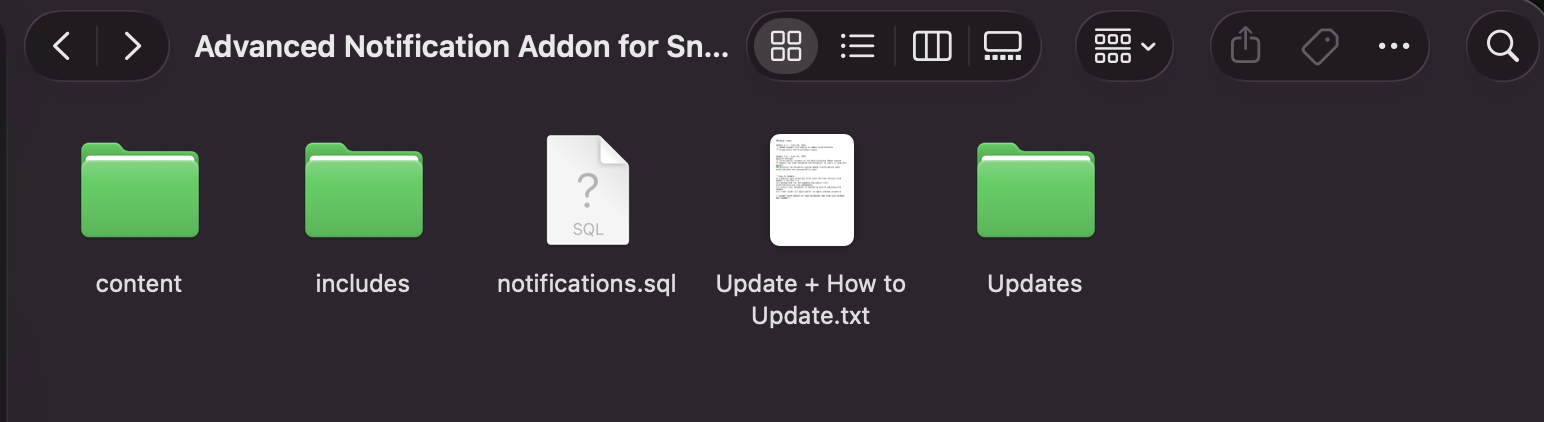
After purchasing and downloading NotiLive, you will find a folder containing the following:
content/– files to upload to your Sngine themeincludes/– core logic filesnotification.sql– database structureupdates/– update instructions (if any)README.txt– additional notes
Make sure all these are present before proceeding.
Step 2 – Import the database
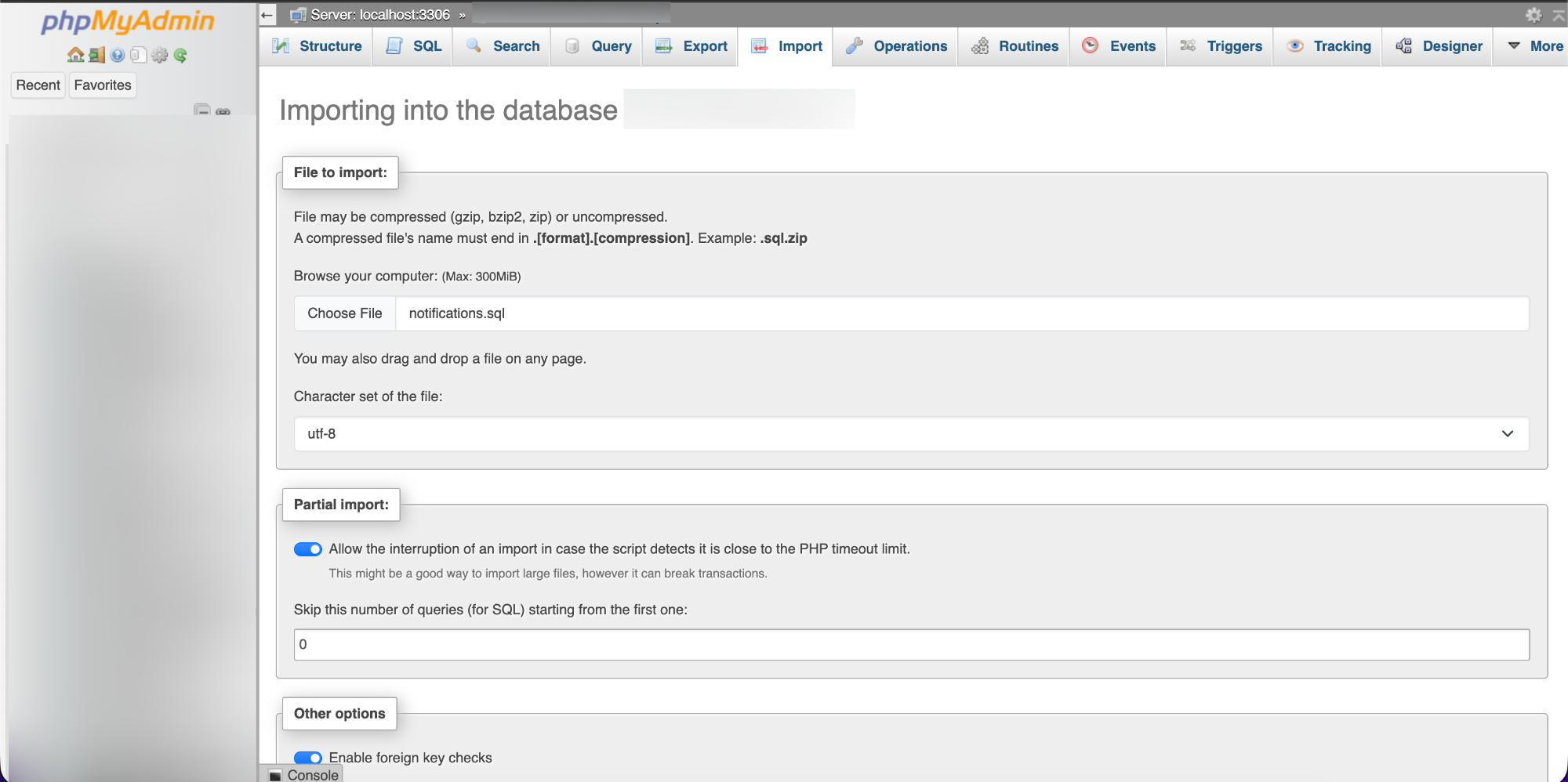
Log in to your hosting control panel and open phpMyAdmin (or any MySQL tool).
- Select your Sngine database.
- Go to the Import tab.
- Click Choose File and select the
notification.sqlfile from the NotiLive package. - Click Go to run the import.
This will create the necessary tables for the notification system.
Step 3 – Upload files
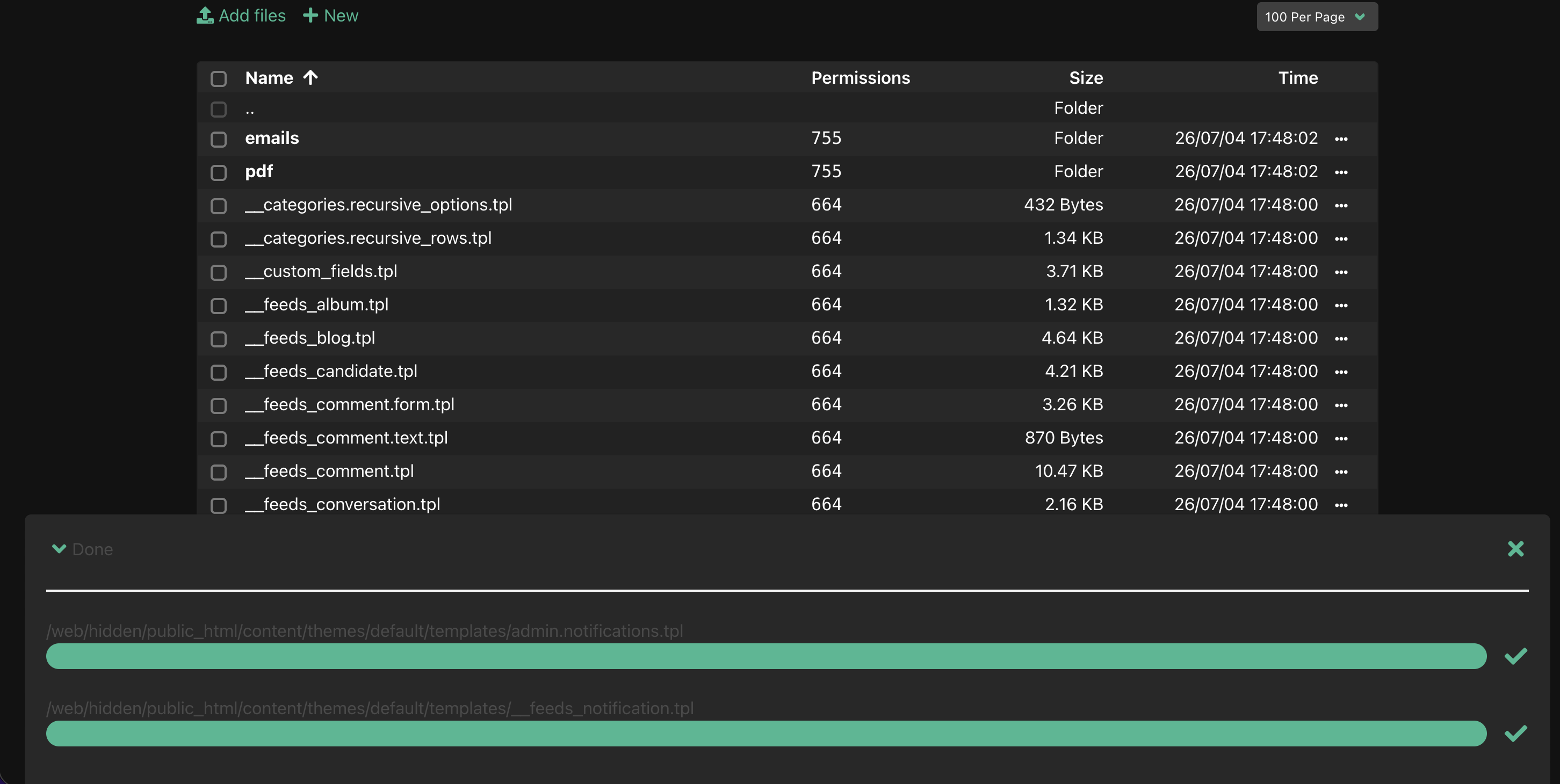
Now you need to upload the files to your Sngine installation.
- For the theme files: copy everything from the
content/folder tocontent/themes/YOUR_THEME/templates/(replaceYOUR_THEMEwith your active theme, e.g.,default,elengine, orxngine). - For the includes: copy the
includes/folder to your Sngine root directory, merging with the existingincludes/folder.
Important: It is recommended to delete the original files from the Sngine templates directory before copying the new ones, to avoid any leftover files that might cause issues.
Step 4 – Done! Access the Admin Panel
Once the files are uploaded and the database is imported, you can start using NotiLive.
Go to your Sngine AdminCP → Reach → Mass Notification (or directly visit https://yourdomain.com/admincp/notifications).
You will see the NotiLive panel, where you can compose and send targeted notifications.
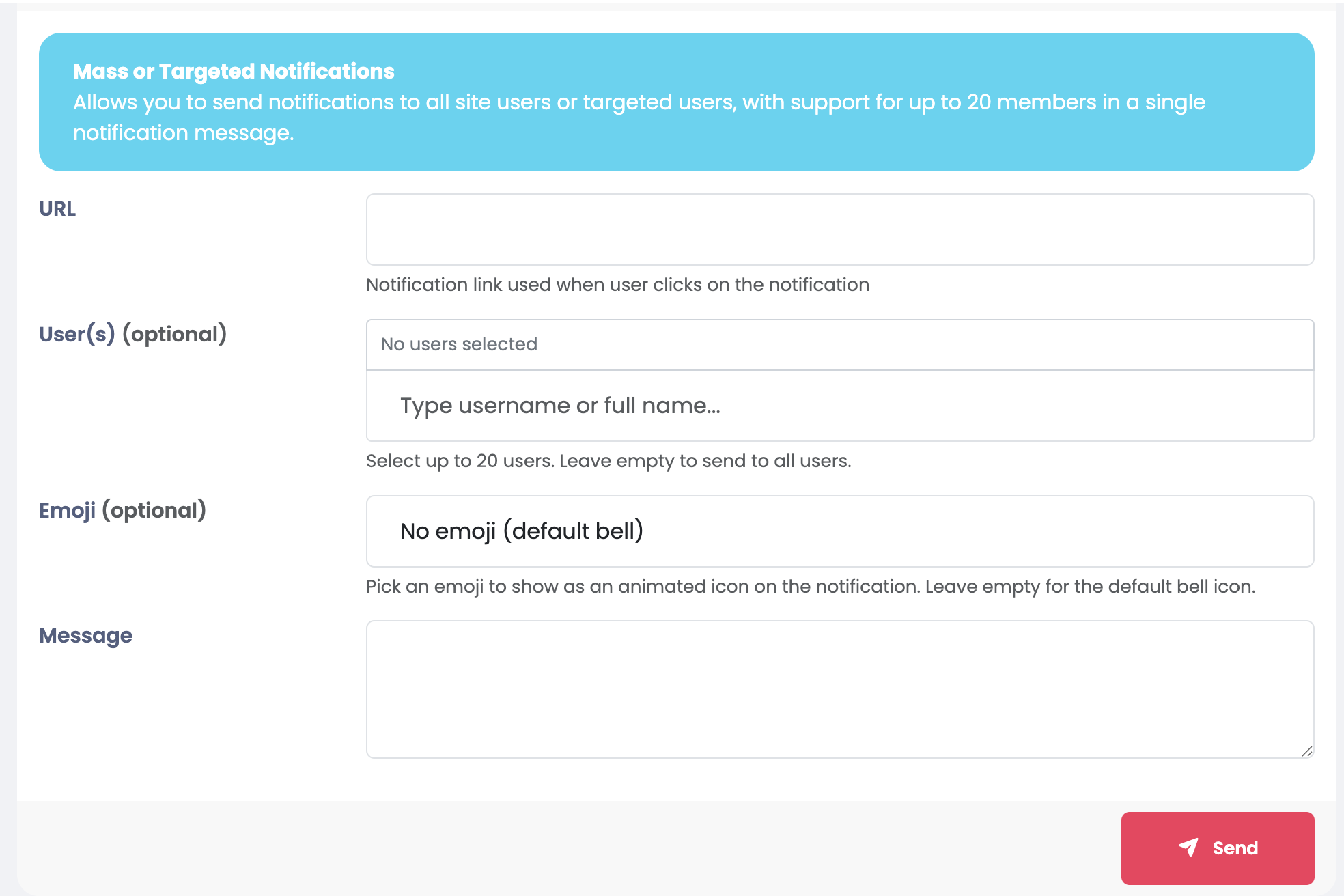
You can now start sending notifications to specific users or groups.
Core Features
NotiLive brings powerful targeted notification capabilities to your Sngine community.
Targeted Delivery
Send notifications only to the users you select – no more broadcasting to everyone.
Up to 20 Users per Notification
Select multiple recipients in a single action. Perfect for groups and teams.
Tags on Notifications
Label notifications as Announcement, Critical, New, and more with custom colors.
Preview Before Sending
See exactly how your notification will look before delivery – no surprises.
Lightweight & Optimized
Minimal performance impact; built to work efficiently even on shared hosting.
Seamless Integration
Fully compatible with Sngine's native notification system – no theme changes needed.
What You Can Do
- Notify specific users – choose from a list of users or type their names.
- Send to groups – target premium members, moderators, staff, or any custom group.
- Tag notifications – label them as Announcement, Critical, New, or custom with your own color.
- Preview notifications – see the final look before sending.
- Personalised messages – craft tailored notifications for each recipient.
- Emoji support – add animated emojis to make notifications more engaging.
- Confirmation feedback – see a success message after sending.
Contest winners, beta testers, VIP users, staff announcements, and any scenario where you need to reach a select audience without spamming everyone.
Target Notifications
NotiLive gives you full control over who receives your notifications. Choose exactly who to reach — from individual users to entire groups.
To User (up to 20)
Select up to 20 individual users per notification. Type their names or pick from a list — perfect for VIPs, contest winners, or staff.
To Group / Role
Send to entire system roles — Admins, Moderators, Users — or any custom Users Group created from your AdminCP.
Public (All Users)
Broadcast to every user on your platform. Great for major announcements, site-wide updates, or feature launches.
Custom Notification Name
Set a custom name for system notifications. Leave blank to keep the default “System Message” — personalise your brand.
Notification Background Colors
Enable a background color and choose any custom hex color for your notifications. Make them stand out or match your brand.
Group & Role Query Optimized
Efficient group/role queries handle large user bases without unnecessary database load — fast and reliable.
Targeting Options at a Glance
| Target Type | Description | Max Recipients |
|---|---|---|
| Individual Users | Select specific users by name or ID | 20 |
| System Roles | Admins, Moderators, Users | Unlimited |
| Custom Groups | Groups created from AdminCP | Unlimited |
| Public (All) | Entire user base | All users |
Combine custom notification names with background colors to create branded, memorable notifications that reinforce your community identity.
Tags on Notifications v1.3
With NotiLive v1.3, administrators can now attach visual tags to notifications, giving users instant context about the type and urgency of each message.
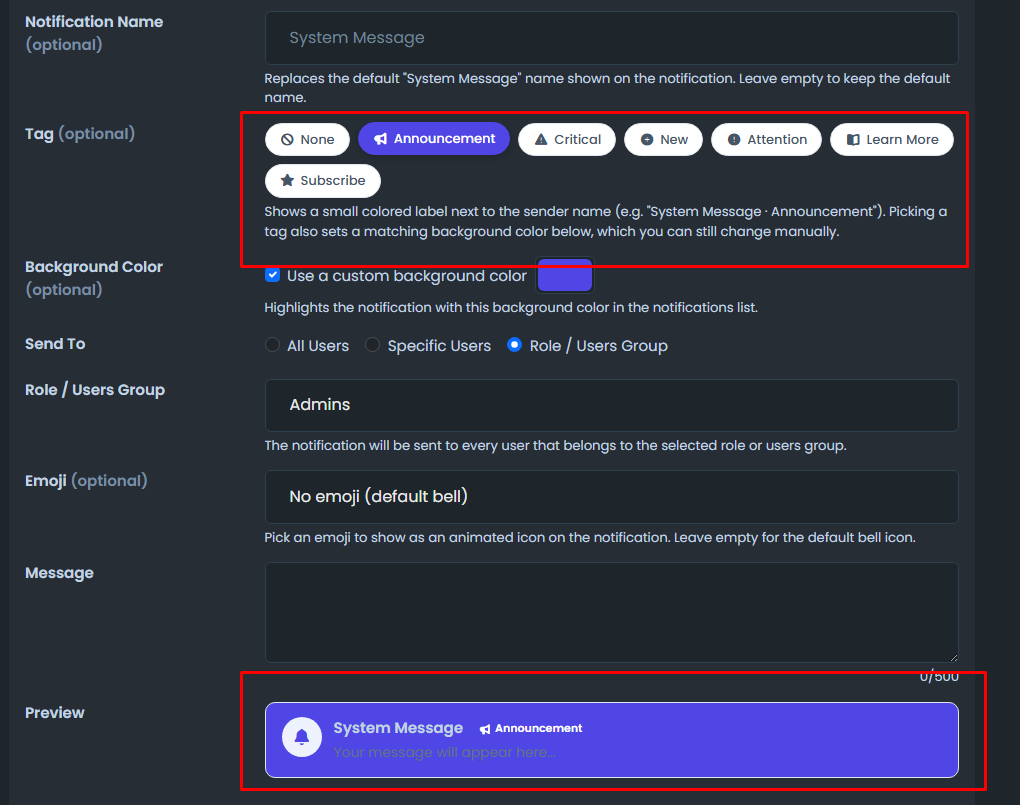
Predefined Tags
Choose from built-in tags like Announcement, Critical, New, Update, and more.
Custom Colors
Each tag comes with a distinct color, and administrators can customize the color per notification to match their brand.
Instant Recognition
Users can immediately see the type of notification at a glance — no need to read the full message to understand urgency.
Flexible Tagging
Admins can choose a tag for each notification, or leave it untagged. The tag appears prominently on the notification card.
Available Tag Types
| Tag | Color | Best Used For |
|---|---|---|
| Announcement | Blue | General platform announcements, new features, updates |
| Critical | Red | Urgent issues, security alerts, downtime notifications |
| New | Green | New features, product launches, fresh content |
| Update | Orange | Changes, improvements, maintenance updates |
| Promo | Purple | Special offers, discounts, promotions |
| General | Gray | Miscellaneous, non-urgent information |
When composing a notification, simply select a tag from the dropdown. The tag will appear on the notification card, giving users immediate context. You can also set a custom background color per notification to make it stand out even more.
Changelog
All notable changes to NotiLive are documented here.
Update 1.3 – August 30, 2026 Latest
- Added Tags option for notifications — label notifications as Announcement, Critical, New, and more with custom colors.
- Added Preview before sending notifications — see exactly how your notification will look before delivery.
- Added compatibility with Sngine v4.5.
- Fixed UTF-8 issue that broke Announcements — special characters now display correctly.
Update 1.2.1 – August 15, 2026
- Fixed multi-line mass notification messages rendering as one run-on line ("jumbled" text) — line breaks are now preserved when the notification is displayed.
- Fixed the custom Background Color not appearing on notifications — the color and custom name are now actually saved when a notification is sent.
- Fixed the custom Notification Name not appearing on notifications, for the same reason as above.
- Fixed a fatal error that occurred when sending a notification to a Role / Users Group.
- Fixed the default "System Message" name showing as a mixed-language string on translated sites (e.g. "System Mensagem") — it now uses a single translatable phrase.
Update 1.2 – August 8, 2026
- Added Custom Notification Name — admins can now set a custom name for system notifications. Leave blank to keep the default “System Message”.
- Added Notification Background Colors — admins can enable a background color and choose a custom hex color for notifications.
- Added Send To Role/Group — admins can now send notifications to entire system roles (Admins, Moderators, Users) or custom Users Groups created from AdminCP.
- Improved notification delivery with an efficient group/role query designed to handle large user groups without unnecessary database load.
Update 1.1.1 – July 19, 2026
- Added support for Elengine Theme (Buy Elengine from here)
- Added support for Xngine Theme (Buy Xngine from here)
Update 1.1 – July 13, 2026
- Added support for animated notification emojis.
- Added emoji selection for admin notifications.
- Fixed minor UTF-8 encoding issues.
Update 1.0 – June 26, 2026
- Added the ability to send targeted notifications to selected users (up to 20 users per notification).
- Added support for sending notifications to all users or selected users.
- Added notification delivery confirmation after successful sending.
Frequently Asked Questions
Quick answers to the most common questions about NotiLive.
No, you can run NotiLive on shared hosting as well. It's lightweight and optimised for performance.
Yes! NotiLive is actively maintained and will receive regular updates with new features, improvements, and bug fixes.
So far, NotiLive supports the default Sngine theme, Elengine, and Xngine. More themes may be added in the future.
NotiLive works with Sngine v4.0 and higher. v4.5+ is recommended for the best experience with the latest features.
Yes! With v1.2, you can now send to entire roles or custom groups — no limit. For individual users, the limit remains 20 per notification.
New in v1.3! Tags let you label notifications as Announcement, Critical, New, and more. Simply select a tag from the dropdown when composing a notification. The tag will appear on the notification card with a distinct color, giving users instant context.
No, NotiLive is fully compatible with the native notification system. It extends the functionality without breaking anything.
Contact our support team at portasale.com/u/zinklystudio. Please include your purchase ID and a detailed description of your issue.
Contact our support team at portasale.com/u/zinklystudio – we're happy to help.